Showing posts with label toolbar. Show all posts

Oct 5, 2010

How to Delete a Page

You must be a site author in the group that owns the page.

  1. Log in and navigate to the page to be deleted.  (Page < Open is a fast way to do this)
  2. Turn on EDIT mode in the top toolbar.
  3. In the toolbar, select Page < Delete
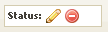
  4. Are you sure?  Click Yes.  The page will reload and the status icon in the toolbar will now include a red circle.  The page is not yet deleted, it is just marked for deletion.  
  5. Publish the page (Page < Publish) or send it to workflow (Page < Workflow < Submit)
    • If you have workflow, the page still must be 'Approved' and then it will delete and no longer appear on your site.  

Upon publishing or approving the page, the page will refresh and you will see either a page error or a 404, or be redirected somewhere, depending on how your site is configured.

Oct 4, 2010

Changing Page Properties - GeoDocs 8

There are many reasons you may want to change a page's properties.   You want to move a page, or change the title, or switch to a different template.  That's all in the Page Properties.  You must have the role of 'site author' in the group that owns the page in order to change page properties or publish the page.  If your site uses workflow you may also need to be a workflow approver to complete this process.
  1. Log in 
  2. Click the PAGE button in the toolbar, then select 'View Page Properties' in the dropdown menu.  A popup will appear, with information organized on three tabs.  
  3. Make the property change (more detail below)
  4. Click SAVE.  The popup will close.
  5. Go back to the PAGE button in the toolbar and in the dropdown menu, either click 'Publish' if you don't have workflow, or 'Workflow < Submit' if you do have workflow.  (an approver will then need to go to the page menu and select "Workflow < Approve")

Page Menu in GeoDocs without Workflow
Where to change the properties?

First tab: Describe this page
  • Change the page title - on the first tab, type in the new name.  
  • Change the page name that appears in menus - change the page 'caption' on the first tab.
  • Make a page private or public - check or uncheck the 'Public' box.  If the box is unchecked (non-public) then only users in the owning group can see it and only when they're logged in.
  • Turn off or inactivate a page - uncheck or check the 'Active' box.  Inactive pages can only be seen by site authors while logged in and if they're a member of the group that owns the page.  
  • Change page description - the 'Meta Data' field may feed the page's HTML description.  This depends on how the page template is designed.
  • Change metadata for search engine optimization (SEO) - Again, the 'Meta Data' field on the first tab. 
Second tab: Where does the page belong on this site?
  • Move a page to a new location in the sitemap - select the middle tab and simply highlight the page that you want this page to go UNDER.  
Third tab: Images
  • Change the banner image on a page.  (Not all templates are designed to do this.)  - use the link selector tool to choose a new document (image) for the banner.  Note that only files cropped at exactly the right dimensions will work, not just any image in the system.
Page Properties Pop-up Window - click to enlarge

Aug 11, 2010

The GeoDocs 8 Toolbar

Once logged in, users will see a toolbar that floats at the top of the screen.

Site Author and Content Author toolbar: (full toolbar) includes Page, Files, Status, Edit/Preview/Live, RSS Builder, Site Tools, Change Password, User Name, and Logout button.


Document Author Toolbar: omits the Status field, does not have Edit/Preview/Live or RSS Builder buttons.
The Member Toolbar only has two buttons: Logout and Change Password.

The features available on the toolbar are based on the highest role the user has in any group, so if a user is just a Member in one group but a Site Author in another group, that user will see the full Site Author toolbar. Certain options in the Page menu dropdown will be greyed out for Content or Document Authors, such as 'Delete Page'.

(More about User Roles)

Page Button : Opens dropdown menu of page options including New, Open, Copy, Delete, Publish, Workflow, and View Properties. Only a Site Author will have access to the complete menu, and only while in Edit Mode. (More about Pages and Site Authors)


Files Button: Opens the Document Explorer for file management including upload, edit properties, and view versions (Enterprise License only). (More about Document Explorer)


Status Icons

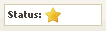
Gold Star: Everything on the page has been published and is live on the site. (Preview and Live modes match)


Pencil: Something has been edited since the last published version. This could be new/changed content, section, menu, or page. This icon will also display if the page has never been published.


Pencil with Red Circle: Either the page or a piece of content has been marked for deletion. (Deletion is completed when the page or content is published)


Edit/Preview/Live: Allows Content Authors and Site Authors to view the page in three different 'modes' for editing, previewing changes, and viewing the live site.


RSS Builder: Opens a popup window that guides users through creating an RSS feed based on content author groups, topics, and other parameters and provides a URL to the RSS feed. (Future post: More about RSS Builder)


Site Tools: Opens a new browser tab to view other administrative features, such as user administration, topic administration, and Site Map controls. (Future post: More about Site Tools)